


Tired of spelling out your complicated Wi-Fi password for every guest? While most of us think of QR codes as a quick way to open a website, that’s just scratching the surface of what they can do. Think of a QR code less as a simple link and more as a powerful digital shortcut for almost any piece of information you want to share instantly. Discover the best info about qr symbol generator.
So, what types of content can a QR code hold? When you create your own, you’ll discover a whole menu of options designed to make life easier for you and your audience. You can build a code for nearly any situation:
- Website URL: Send people directly to your portfolio, Etsy shop, or social media page.
- Wi-Fi Network: Create a QR code for a Wi-Fi password so guests can connect with one scan—no typing required.
- vCard Contact: Put a QR code for a business card (vCard) on your physical card to let people save your contact info directly to their phone’s address book.
- Google Maps Location: Guide attendees to your party or pop-up event with a single tap.
- Plain Text: Share a simple message, a secret discount code, or a quick note.
Deciding what you want your code to do is the very first choice you’ll make in the creation process. Before you even think about colors or adding a logo, you simply select the type of action you want to trigger. This single step is what transforms a simple black-and-white square into a purpose-built tool that helps you share exactly what you need, when you need it.
The Most Important Choice: A “Forever” Code vs. an “Editable” Code
Before you click “generate,” you’ll face one key decision that will save you future headaches: should your QR code be static or dynamic? This is the most important choice you’ll make, as it determines whether your code is permanent or can be changed later. Understanding the difference is simple, but it has a huge impact on how you can use your new code.
Think of a static QR code like a message carved in stone or printed in a book. The information—whether it’s a website link or your WiFi password—is locked into the pattern itself. Once you create and print it, you cannot change what it does. It’s permanent, straightforward, and works forever without any management.
A dynamic QR code, however, is like a message on a digital whiteboard. It gives you an editable qr code after printing. Even after your code is on a hundred flyers, you can log into your free qr code maker and change the destination link. You could fix a typo, redirect customers to a new sales page, or update your menu without ever touching the printed code.
This dynamic vs static qr codes distinction is crucial. Choosing a dynamic code gives you flexibility and control, preventing the costly mistake of having to reprint everything if a link changes. Now, let’s look at the specific situations where a permanent, “forever” code is exactly what you need.
When to Use a “Forever” (Static) QR Code
The permanent, “carved-in-stone” nature of a static code might sound limiting, but it’s actually perfect for information you know will never change. Think about the link to your LinkedIn profile on a resume, a wedding invitation that directs guests to a map, or your home WiFi password. These details are fixed. By creating static QR codes for them, you get a simple, reliable tool that does one job perfectly and will continue to do it for years to come.
Perhaps the biggest advantage of this simplicity is the cost. Most online tools function as a free QR code maker with no expiration for static codes. You can generate one, download it, and use it forever without needing an account or paying a subscription. It’s a true “set it and forget it” solution. If you need to know how to make a QR code for a website link that won’t be updated, the static option is your most direct and cost-effective choice.
So, the rule of thumb is simple: if the data you’re linking to is final, choose a static code. It’s ideal for personal projects, contact information, or any one-off event where you need a dependable link without any future maintenance. But what happens when your information isn’t so permanent? For that, you need a more flexible tool.
Why an “Editable” (Dynamic) QR Code Is Your Secret Weapon
If a static code is permanent, a dynamic QR code is like a message on a whiteboard—you can change it anytime. Imagine you’ve printed 500 flyers for your bake sale, but the donation website link changes. With a static code, you’d have to reprint everything. With a dynamic one, you simply log into your QR code generator, update the link, and the same printed code on your flyer now points to the new page. This ability to create an editable QR code after printing saves you time, money, and a massive headache.
Beyond just being editable, dynamic codes offer a powerful secret: they can provide feedback. Have you ever wondered if anyone is actually scanning the code on your business card or poster? A dynamic code can answer that. Most generators allow you to track QR code scans and analytics, showing you simple but valuable information like how many people have scanned your code. This is perfect for seeing if your promotional efforts are working.
This flexibility makes dynamic codes the clear choice for any business or marketing purpose. A restaurant can update its menu link for daily specials, a musician can change a code on their merch to point to their newest song, and a realtor can update a listing’s status on a “For Sale” sign. Any situation where your information might change, even slightly, is a perfect job for a dynamic QR code.
Ultimately, choosing a dynamic code gives you control and insight. It turns a simple scannable square into an adaptable tool that can grow and change with your project. Now that you know the difference between the “forever” code and the “editable” one, you’re ready to create your own.
How to Make Your First QR Code in 5 Simple Steps
Creating a QR code is a straightforward process that takes just a few minutes. After picking an online QR code generator, the core steps to create a QR code are always the same, whether you’re making one for a bake sale poster or a business card.
Just follow this simple five-step roadmap:
- Select Your Content Type. First, tell the generator what your code will do—open a website link, connect to WiFi, or show plain text.
- Enter Your Information. This is where you’ll paste your link or type in the details for your chosen content.
- Customize Your Design (Optional). Make the code your own! You can often change the colors or add a small logo in the center.
- Download Your QR Code. Save the finished code as a high-quality image (like a PNG file) to your computer.
- Test It Out! This is the most important step. Before you print anything, scan the downloaded code with your own phone to make sure it works perfectly.
Step-by-Step: Creating a QR Code for Your Website Link
Of all the things a QR code can do, sending someone to a website is the most popular. This is perfect for guiding people from a business card to your portfolio, from a poster to a donation page, or from a market stall sign to your Etsy shop. Learning how to make a QR code for a website link is an incredibly useful skill.
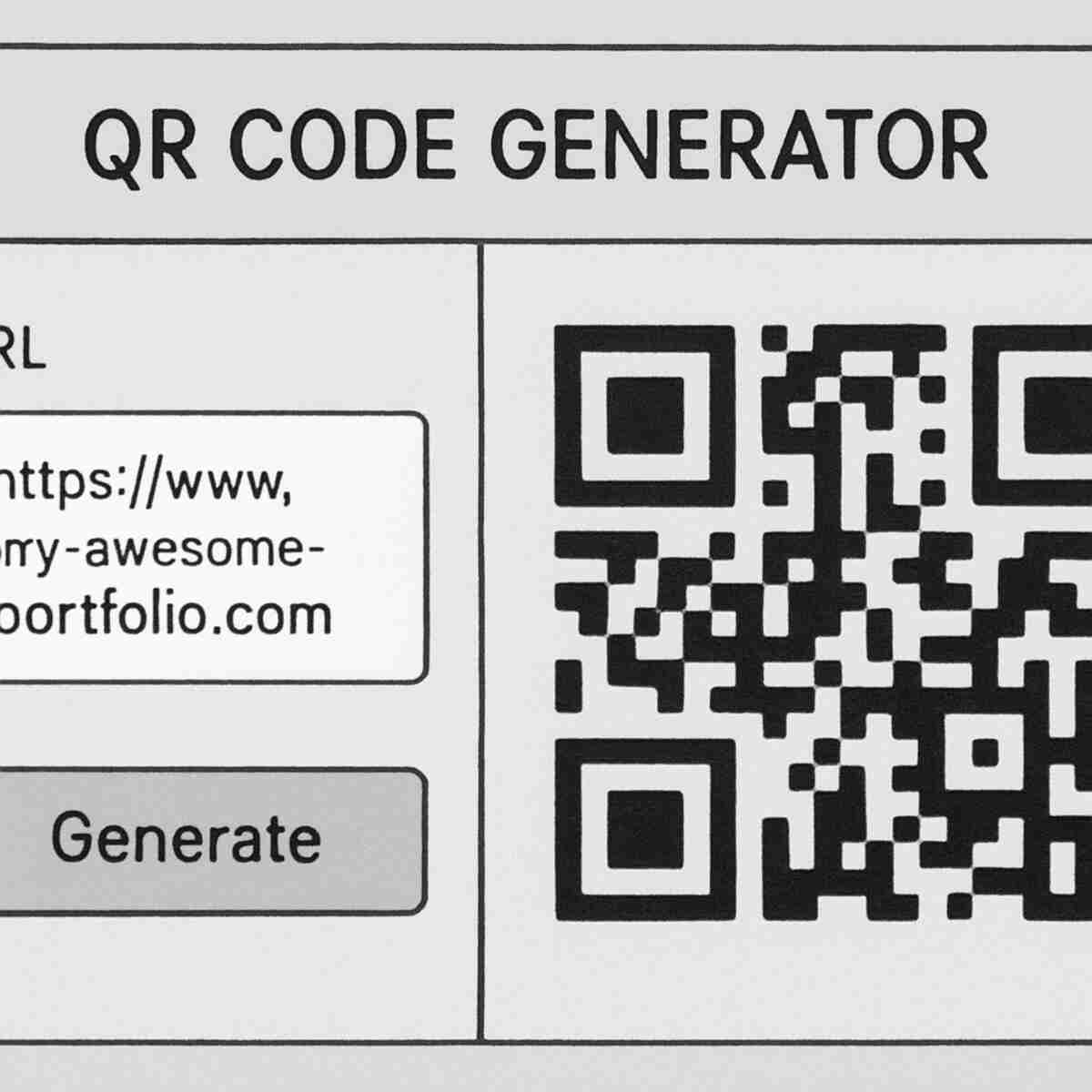
In your chosen QR code generator, start by selecting the content type. You’ll see options like “URL,” “Website,” or “Link.” Once you’ve clicked it, a field will appear asking for the website address. Simply go to the website you want to link to, copy the full address from the top bar of your browser, and paste it directly into that field.
The moment you paste the link, a black-and-white square QR code will appear on the screen. The generator does all the heavy lifting for you, immediately turning your web address into a scannable code. The visual feedback is immediate, confirming that your link has been successfully encoded.
From here, you can download the image file (usually a PNG) and, most importantly, test it with your phone’s camera to ensure it opens the correct website. While the basic code is ready to go, you can also add a personal touch to make it stand out.
The Fun Part: How to Customize Your QR Code’s Design Safely
While a standard black-and-white QR code works perfectly, it might not match the look of your business card, poster, or brand. Most generators offer design tools that let you change colors and even the shape of the code’s pattern. Before you jump in, there’s one critical rule you must follow to make sure your code actually works: maintain high color contrast. This simply means there needs to be a very clear difference between the dark parts of the code and the light background.
The reason is simple: phone cameras need to instantly distinguish the pattern from the empty space. Think of it like reading text—black words on a white page are easy to see, but yellow words on a white page are a struggle for our eyes. The same is true for a phone’s camera. For best results, always stick to a dark pattern on a light background. A navy blue code on a cream-colored background is great; a pastel pink code on a light gray background will likely fail.
Beyond just color, many tools allow for other fun edits, like changing the shape of the three large corner squares (often called the “eyes”) or softening the dots into rounded shapes. These are generally safe ways to add a unique flair without risking scannability. Feel free to play with these options to create a design that’s truly yours.
How to Add a Logo to Your QR Code (Without Breaking It)
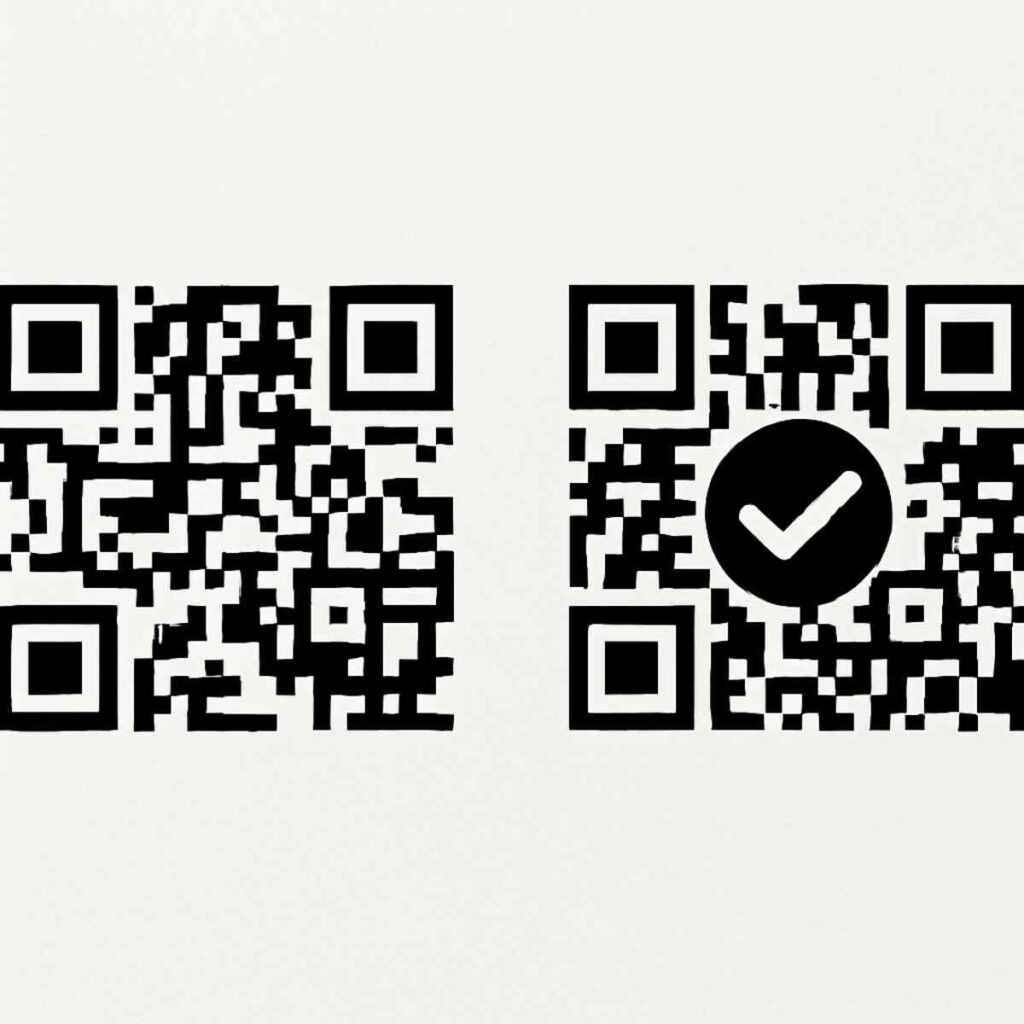
So, how can you place an image in the middle of a QR code and still have it scan perfectly? The answer lies in a clever feature called “error correction.” Think of it like a sentence that’s still readable even if a few letters are smudged. QR codes have this self-healing ability built right in, allowing up to 30% of the code to be covered or damaged while still working. This creates a safe space in the center, which is perfect for your brand’s logo.
The best way to add your logo is to use the dedicated feature within your QR code generator. Don’t try to copy and paste your logo on top of a downloaded code in a separate design program. When you use the generator’s tool, it automatically calculates how large your logo can be and places it correctly without interfering with the essential data. This is the single most important step to create a QR code with logo that reliably scans every time.
As you can see in the example, the logo sits neatly in the middle, leaving the three large squares in the corners completely untouched. These “eyes” are critical for the camera to orient itself, so they must always be kept clear. A good generator will prevent you from covering them, but it’s a vital rule of qr code design and customization to remember.
Once your logo is in place, make sure to download a high resolution QR code for print, such as a PNG or SVG file. This ensures your logo and the code itself look sharp and professional on business cards or flyers.
Design Pitfalls: 3 Customization Mistakes That Make QR Codes Unscannable
While personalizing your QR code makes it unique, pushing the creative boundaries too far can unfortunately make it useless. The goal is to create something that looks great and scans reliably for everyone. To ensure your code works perfectly, avoid these three common QR code design mistakes:
- Not Enough Contrast. Using colors that are too similar—like a pastel yellow on a white background or navy on black—makes it nearly impossible for a phone’s camera to distinguish the pattern from the background. Always aim for a strong difference between your dark and light colors.
- Inverted Colors. This means creating a light-colored pattern on a dark background. While it can look striking, many scanning apps and older phones are programmed to look for a dark pattern on a light surface. Sticking with the classic dark-on-light format is the safest bet for maximum compatibility.
- No “Quiet Zone.” Your QR code needs a bit of space around its edges to be found easily by a scanner. Think of it as a mandatory, invisible picture frame that separates it from other design elements.
That clear border is called the quiet zone, and crowding it with text or graphics can confuse a camera. Most qr code generator tools automatically add this buffer, but it’s crucial not to cover it when placing the code onto a business card or poster. Customizing qr codes is a balance between style and function.
Getting Your Code Ready for Print: Why File Type Matters
Once your qr code design is complete, the final step before you can use it is downloading the file. You’ll likely see a few options like PNG, SVG, or EPS, and picking the right one is critical. If you’re adding a qr code for a business card or a large poster, this choice will determine whether your code looks crisp and professional or blurry and unreadable when printed.
The difference comes down to how the file is built. A standard PNG or JPG file is a raster image made of tiny dots (pixels). It’s perfect for screens, but when you enlarge it for printing, the dots get bigger and the image becomes fuzzy. In contrast, vector files like SVG and EPS use math to define lines and shapes. This allows you to create a high resolution qr code for print that can be scaled to any size—from a postage stamp to a billboard—without ever losing quality.
So here’s the simple rule: for digital-only uses like on a website or in an email, a PNG is fine. For anything that will be printed, always choose an SVG or EPS to ensure your code remains sharp and scannable.
The Easiest Way to Share Your Wi-Fi: Create a QR Code for Your Network
One of the most common household headaches is reciting a long, complicated Wi-Fi password for every new guest. A single typo can lead to frustration, but a QR code turns that entire process into a single, effortless scan. This is one of the most popular and practical uses for a QR code in your home.
To create this, you’ll need three pieces of information: your network’s name (often called the SSID), its password, and the security type. You can find the network name by looking at the list of available networks on your phone. For virtually all modern home networks, the security type will be WPA/WPA2, so it’s safe to select that option.
With this information in hand, open your chosen qr code generator. Instead of entering a website link, you’ll select the “Wi-Fi” or “WLAN” option. The tool will then provide simple fields for you to enter your network name, password, and security type. That’s all it takes; you now know how to generate qr code for wifi password. Many of the best free qr code creator tools make this incredibly straightforward.
Now you have a code you can print and place on the fridge or in a guest room. Visitors can connect instantly without ever having to type a thing.
Upgrade Your Business Card: Making a vCard QR Code
The same principle of bundling complex information into a simple scan can completely modernize your business card. Imagine handing someone your card, and instead of them needing to manually type your name, email, and phone number into their contacts, they simply scan a code and save everything perfectly in two seconds. This is exactly what a qr code for a business card VCard does. The term “vCard” is just a shorthand for a virtual contact card, and it’s a powerful way to make sure your details actually make it into someone’s phone.
To bring this feature to your own cards, you’ll create a qr code using a slightly different option in the generator. Instead of choosing “Website” or “Wi-Fi,” you’ll select the “vCard” or “Contact” type. You’ll then see a simple form where you can enter all the details you want to share: your name, company, job title, phone numbers, email address, and even a link to your website or portfolio. Once you fill it out, the generator bundles all that data into a single, scannable square.
This small addition makes networking more efficient and ensures your information is saved without errors. For something as important as a business card, this is an ideal use for dynamic qr codes. If your phone number or email ever changes, you can update the code’s information online without having to reprint a single card.
What Does “Tracking Your QR Code” Actually Mean?
When you hear that dynamic QR codes can be “tracked,” it might sound intense. In reality, it’s less about spying and more like getting a simple report card for your code. This feature, exclusive to dynamic QR codes, gives you basic, helpful feedback on how your code is performing in the real world without ever compromising anyone’s privacy. It’s designed to answer one simple question: Is this thing working?
So, what information do you actually see? The ability to track QR code scans and analytics typically gives you three simple pieces of anonymous data: the total number of scans, a general time stamp of when those scans occurred, and the broad location (such as the city and country) where the scan took place.
Crucially, this process is completely anonymous. It does not tell you who scanned your code, nor does it collect any personal information from their phone, like their name, email, or contacts. The person scanning the code remains a stranger. The “tracking” is about the code’s activity, not the user’s identity.
This simple feedback is surprisingly powerful. Imagine you’ve placed a qr code for business on a poster for a local craft fair. By checking the analytics, you might see that you got 50 scans, mostly on the weekend. That tells you your poster was effective! If you see zero scans, you know you might need to try a different location or design next time.
Are QR Codes Safe to Create and Use?
Yes, using a qr code generator is completely safe. The tool only takes the information you provide—like a website link or a WiFi password—and turns it into a scannable image. It doesn’t add anything extra or take any information from you. You are in full control of the content.
However, you should be cautious when scanning QR codes you find in public. The code itself is harmless, but it could be programmed to send you to a malicious website. Thankfully, your smartphone gives you a simple safety net. When you point your camera at a QR code, a notification pops up showing you the destination URL or a preview of the content. Always look at this preview before you tap to open it. Does the website address look legitimate? If you’re scanning a code at a coffee shop for their menu, the link should look like it belongs to that shop, not a random, jumbled address.
One final tip is to use your eyes before you even use your phone. Scammers have been known to place a sticker with their own malicious QR code on top of a legitimate one. If a QR code looks like it was added as an afterthought or is peeling off, it’s best to avoid scanning it.
When You Need More Than One: What Is a Bulk Creation Tool?
Creating a single QR code is simple, but what if you needed to make hundreds? Imagine you’re organizing a conference and want a unique code on each attendee’s name badge, or sending a promotional mailer to 500 customers with personalized links. Making each code one-by-one would be a time-consuming chore.
This is exactly why a bulk QR code creation tool exists. Instead of entering information manually, you provide a single data file—usually a simple spreadsheet—that contains all the different links or text. The generator then reads your list and automatically produces a unique QR code for every single row in your file. It turns a job that would take hours into one that takes just a few minutes.
For most personal projects, you’ll likely never need this feature. It’s a powerful option designed for larger-scale needs, like using a QR code for business inventory or marketing campaigns where dynamic QR codes can track performance.
What About the QR Code Tool in Canva?
If you use design platforms like Canva, you’ve probably noticed their built-in app to make QR codes. For quickly dropping a code onto a poster or social media graphic, this is incredibly convenient. However, it’s essential to understand what kind of code this tool creates, as it comes with one major limitation.
The generators integrated into most design platforms, including Canva, create static QR codes exclusively. As you’ll recall, a static code is permanent—once it’s made, the information inside cannot be edited. If you spot a typo in the link or need to update the URL later, you’ll have to generate a brand-new code and manually replace the old one everywhere it was used.
So how do you get an editable, dynamic code into your Canva design? You simply use the best of both worlds. First, create your dynamic QR code using a dedicated generator tool. Next, download the code as an image file (PNG or SVG) and then upload it to Canva just like any other picture. This gives you the flexibility of a dynamic code combined with the creative power of your favorite QR code design platform.
Your QR Code Action Plan: From Idea to Scannable Reality
You now understand not only what QR codes are but exactly how to create one yourself. You’re no longer just a scanner; you’re a creator, ready to connect your physical world to the digital one in a matter of minutes.
Before you open a QR code generator, run through this quick action plan to ensure you create the perfect code for your needs:
- What’s my goal? (e.g., share Wi-Fi, link to my shop)
- Static or Dynamic? (Choose Dynamic if the link might ever change)
- Design for Scannability: High contrast is king.
- Add Your Logo: Use the generator’s tool for safe customization.
- Download for Your Needs: SVG for print, PNG for web.
- Test, Test, Test!
That’s it. The best way to learn is by doing, so pick a small project—like a Wi-Fi code for your home or a link to your favorite YouTube channel—and create your first QR code right now. You’ll be surprised at how fast and easy it is to bring your first idea to life.
