
How to Fix PS5 Game Crashes During Online Play
You’re in the final circle in Warzone, about to score the winning goal in FIFA, and suddenly—your screen freezes. The game closes and you’re back on the PS5 home screen, staring at an error code. If this sounds familiar, you’re not alone. When your PS5 crashes during multiplayer, the fix is often much simpler than you think. Check out UFA350 to know more
Instead of randomly trying solutions, this guide uses a troubleshooting hierarchy, moving from the easiest checks to the most effective deep cleans. This logical order helps quickly identify the root cause, whether it’s a temporary glitch, a network hiccup, or a problem with the game’s servers. Most solutions take only a few minutes, require no technical expertise, and will get you back in the game safely without any risk to your saved data.
Here is a clear roadmap to follow. Start at the top and work your way down until the problem is solved.
- Check Game and PSN Server Status
- Restart the Game
- Fully Restart Your PS5 Console
- Check for Game and System Updates
- Restart Your Home Network (Modem/Router)
- Switch to a Wired Ethernet Connection
- Clear System Cache
- Rebuild Your PS5 Database
- Reinstall the Problematic Game
Step 1: Is It Your PS5 or Their Servers? How to Check for Outages
Before you start unplugging cables, it’s smart to first check if the problem is even on your end. An online game crash isn’t always caused by your PS5, but by an issue with the game’s own servers or the entire PlayStation Network (PSN). If a server is down, everyone is affected, and no amount of troubleshooting on your console will fix it. This check can save you a lot of time.
Your first stop should be Sony’s official status page. A quick search on your phone for “check PSN server status” will lead you right to it. If you see all green checkmarks, PSN is fine. If a specific game like Fortnite or Apex Legends is crashing, check the game’s official Twitter page, as developers almost always post updates there during an outage.
If both Sony’s page and the game’s social media show no problems, there’s one last place to look: a third-party site like Downdetector. It gathers reports from other players, so you can see if a problem is just starting to emerge. When PS5 online games not working becomes a widespread issue, you’ll see a spike in reports there. If all these checks come back clear, it’s a strong sign the issue is local and it’s time to focus on your console.
Step 2: The Easiest Fix—Why a Full Restart Beats Rest Mode
Many of us use Rest Mode to quickly jump back into our games, but this convenience can sometimes be the source of the problem. Think of Rest Mode like putting your computer to sleep—it’s still holding onto temporary files and processes. Over time, small software glitches can get stuck in this state, causing your PS5 to keep freezing online.
A full shutdown and restart, however, is a complete reset for the console’s operating system. It forces every process to stop and start fresh, clearing out stubborn temporary errors that Rest Mode often keeps around. This single action is surprisingly effective and can fix PS5 crashes by giving the system a clean slate.
To correctly restart PS5, press and hold the PlayStation button on your controller to open the quick menu. Navigate to the Power icon at the far right and select “Restart PS5.” The console will turn off completely and then boot back up. Once it’s on, try your game again. If the crashes persist, move on to checking for software updates.
Step 3: How to Make Sure Your Game and System Are Up-to-Date
A crash isn’t always caused by your console, but by a bug within the game itself. Developers constantly release updates, or game patches, specifically for fixing game-specific crashes. While your PS5 usually handles these downloads automatically, it’s worth checking manually to ensure you haven’t missed one.
To force a check, highlight the problematic game on your home screen and press the ‘Options’ button on your controller. From the menu that appears, select ‘Check for Update.’ Your console will either confirm you have the latest version or begin downloading the necessary patch.
Beyond the game, your PS5’s system software also needs to be current. These updates ensure everything runs smoothly and can fix widespread problems, including network-related error codes like CE-108255-1. An outdated system can struggle to work correctly with updated games and online services.
To update PS5 system software manually, go to Settings > System > System Software > System Software Update and Settings. Choose ‘Update System Software’ and let the console check. If both your game and system are fully updated but you’re still crashing, the issue may be your home network hardware.
Step 4: Is Your Internet Hardware Causing the Crashes?
If your game and system software are all up-to-date, the problem might be your internet hardware. Your Wi-Fi router works hard 24/7, and just like any computer, it can get bogged down with errors. A quick router reboot often resolves these hidden issues. To do this, unplug your router from the wall, wait a full 60 seconds to let its internal memory clear, and then plug it back in.
Even after a reboot, your Wi-Fi connection can still be a source of trouble. The signal can be weakened by walls, other electronics, or even your neighbor’s network. This creates tiny, split-second interruptions that you might not notice when browsing but are enough to make an online game crash unexpectedly.
For a rock-solid connection, nothing beats a wired setup. An Ethernet connection links your PS5 directly to your router, eliminating Wi-Fi interference entirely. If your console is close enough to your router, this is the single best troubleshooting step for network-related crashes.
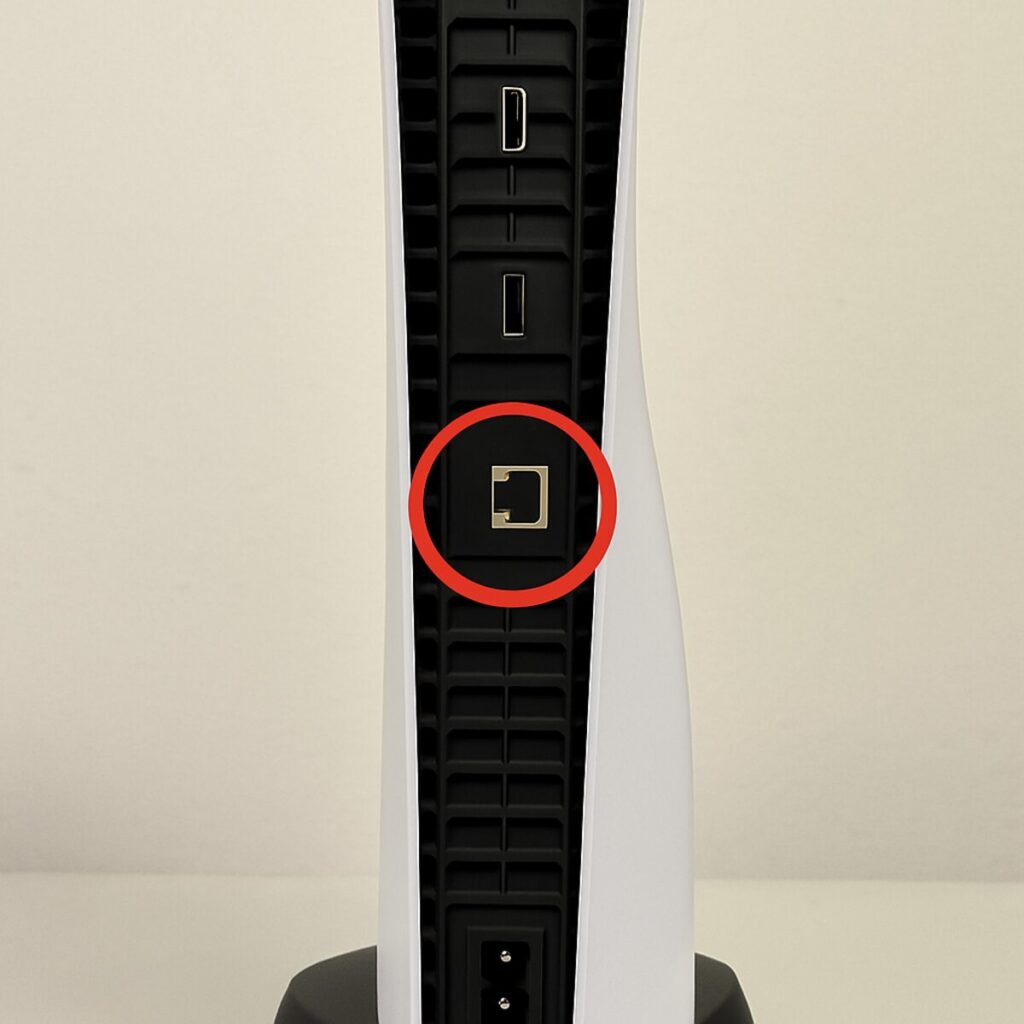
To make the switch, plug one end of an Ethernet cable into a spare port on your router and the other end into the port on the back of your PS5. The console will automatically detect the wired connection. If switching to Ethernet doesn’t stop the crashes, it’s time to perform a ‘deep clean’ on the console itself.
Step 5: The First ‘Deep Clean’—Clearing Your PS5’s Cache
If a wired connection didn’t solve the problem, the next step is to clean out your console’s temporary files, known as the “cache.” Think of it like a junk drawer for your PS5; over time, it gets cluttered with old data that can slow the system down or cause games to crash. Clearing it is a safe and effective way to fix hidden software glitches.
To do this, we need to start the PS5 in Safe Mode, a standard, built-in feature from Sony for this kind of troubleshooting. It provides direct access to diagnostic tools without putting any of your data at risk. This process will not delete your games or save files.
- Turn off your PS5 completely by pressing and holding the power button for three seconds (do not use Rest Mode).
- Once it’s off, press and hold the power button on the front of the console again. Release it only after you hear the second beep—this takes about seven seconds.
- Connect your DualSense controller to the console with its USB cable and press the PS button.
- The Safe Mode menu will appear. Select option 5. Clear Cache and Rebuild Database.
- On the next screen, choose Clear System Software Cache and select OK.
Your PS5 will restart automatically. Once it’s back on the home screen, launch the game that was crashing to see if the issue is resolved. If you’re still getting kicked from matches, it’s time for the next system tune-up.
Step 6: The Ultimate Tune-Up: How to Safely Rebuild Your PS5’s Database
If clearing the cache didn’t stop the crashes, this step is the other half of the deep clean process. It’s a powerful tune-up that often solves stubborn stability issues, especially when a game freezes or the console feels sluggish.
Think of your PS5’s storage as a massive library. Rebuilding the database is like having a librarian reorganize the card catalog. It doesn’t touch your games or saves, but it cleans up and repairs the index that tells the PS5 where to find everything. This makes accessing data faster and can fix errors caused by a disorganized file system.
Like clearing the cache, this process is entirely safe and does not delete your games, apps, or save files. Start your console in Safe Mode by turning it fully off and holding the power button until you hear the second beep. Once you navigate to the “Clear Cache and Rebuild Database” screen again, this time select the second option: Rebuild Database.
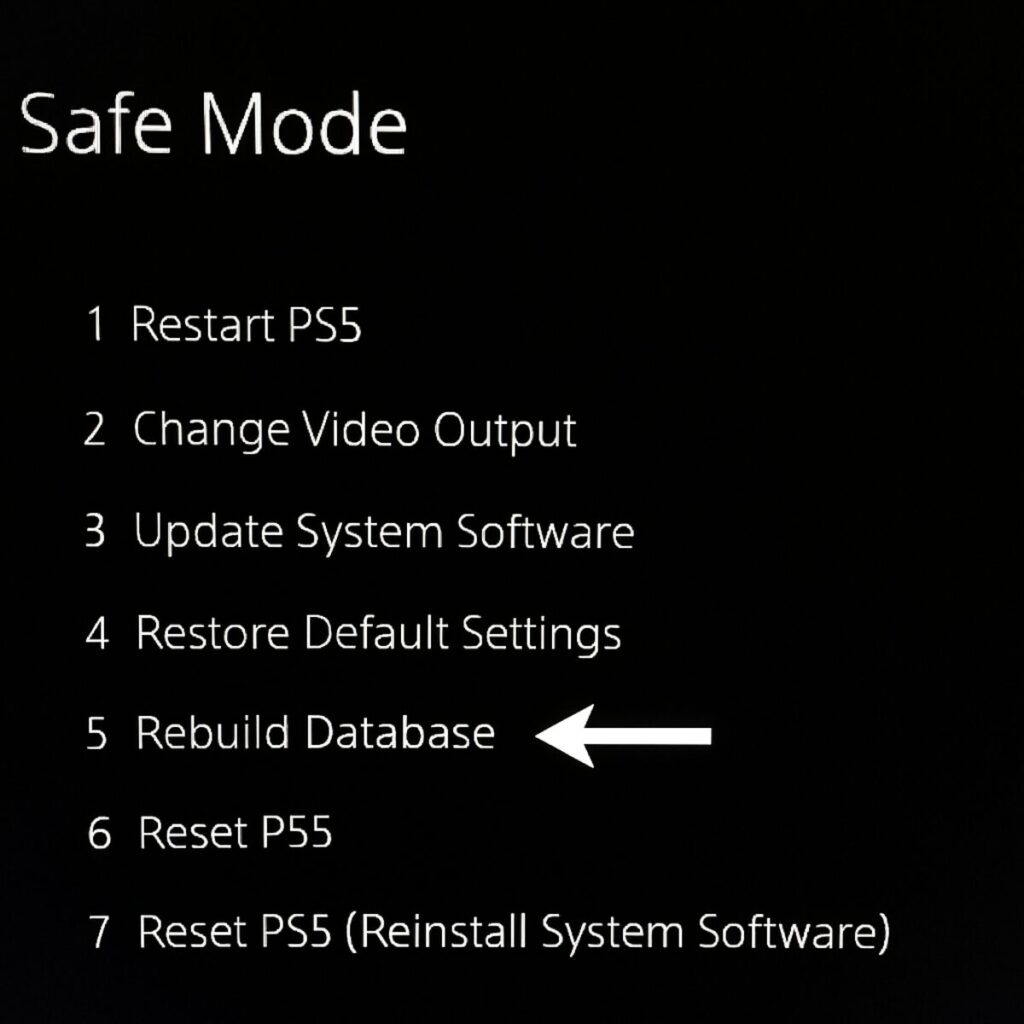
The process may take a few minutes, and your console will restart automatically. Once it’s back up, test the game that was giving you trouble. For many, this is the fix that finally works. If crashes still happen but only in one specific game, the problem is likely with that game’s installation files.
Step 7: When It’s Only One Game: Fixing a Single Corrupted Game
If system-wide fixes haven’t worked, you might notice the crashes are isolated to just one game—perhaps Fortnite constantly freezes while your other games run perfectly. This is a strong clue that the problem isn’t with your PS5, but with the game’s own files. An update or a random glitch can cause game data to become corrupted. When the console tries to access that broken file, it can’t, and the game crashes.
Fortunately, your game saves are stored separately from the main game files, and PlayStation Plus subscribers likely have a cloud backup. This means you can delete the game without losing your progress. The fix is to uninstall the game and download a fresh copy, replacing any corrupted data.
To do this, highlight the game on your home screen, press the “Options” button, and select Delete. Once it’s gone, head to your Game Library to find the game and reinstall it. For many single-game issues, this is the final fix.
Step 8: For Advanced Users: A Simple Network Tweak That Can Boost Stability
If you’ve tried everything else, there’s one final network adjustment that can sometimes help with PS5 internet connection issues: changing your DNS. This is a safe and completely reversible process in the PS5 settings.
Think of DNS (Domain Name System) as the internet’s phone book. By default, you use the one from your internet service provider, which can sometimes be slow. Switching to a public DNS can create a faster, more stable connection for online gaming. We’ll use Google’s public DNS, which is fast and reliable.
- Go to Settings > Network > Settings > Set Up Internet Connection.
- Select your current network (Wi-Fi or LAN), press the Options button, and choose Advanced Settings.
- Change DNS Settings from ‘Automatic’ to Manual.
- Set the Primary DNS to 8.8.8.8 and the Secondary DNS to 8.8.4.4. Leave all other settings as they are and select OK.
After saving, restart your PS5 and test your game. If it doesn’t help, you can return to the same menu and change DNS Settings back to Automatic.
Step 9: Is Your PS5 Too Hot to Handle? Checking for Overheating
If software and network tweaks haven’t solved the problem, it’s time to consider a physical cause: heat. Demanding online games make your PS5 work harder and generate significant heat. If the console can’t cool itself effectively, it will protect itself by shutting down. To you, this can look exactly like a random game crash.
Warning signs of overheating include fans spinning much louder than usual or choppy performance right before a crash. If your PS5 feels unusually hot to the touch, especially around the back vents, you’ve likely found the culprit. The fix is usually proper ventilation.
As the image below shows, keeping your PS5 in a cramped, enclosed TV cabinet is a recipe for trouble. Make sure there are at least four inches of open space around all sides of the console, and never place it on a carpet, which can block crucial air vents. Keeping the vents clear of dust and placing the console in an open area is one of the most effective ways to ensure it runs cool and stable.
Your Action Plan to Get Back in the Game
A frustrating game crash no longer has to be a dead end. By following these steps in order, you can efficiently diagnose and solve the issue, saving time and getting back online faster. For quick future reference, here is your consolidated troubleshooting guide:
- Check Server Status: Is it the game or your console?
- Fully Restart the PS5: Clear out temporary glitches.
- Update Everything: Install the latest game and system software.
- Check Network Hardware: Restart your modem and router.
- Go Wired: Switch from Wi-Fi to an Ethernet cable if possible.
- Clear System Cache: Remove unnecessary temporary files.
- Rebuild Database: Reorganize your console’s data library.
- Reinstall the Game: Fix a specific game’s corrupted files.
- Change DNS Settings: An optional network tweak for stability.
Regular maintenance—like a weekly full restart and keeping your system updated—can prevent these problems from happening again. If you’ve gone through this entire guide and the freezing persists, the issue may be a rare hardware fault. In that case, the final step is to contact PlayStation Support for professional help. Now, get back in the game.